
Tutorial: Evaluate LTX-2 with the SDK
This walkthrough takes you from zero to a full evaluation run of Lightricks LTX-2 (text-to-video) using the WorldJen Python SDK. By the end you will have generated videos, uploaded them to your account, and watched scores appear in real time.
Prerequisites
- Python 3.10+ installed on your machine
- uv — a fast Python package manager. Install it with:
curl -LsSf https://astral.sh/uv/install.sh | sh- Git installed on your machine
- A GPU is strongly recommended (NVIDIA with CUDA or Apple Silicon). CPU works but is very slow.
Create a WorldJen account
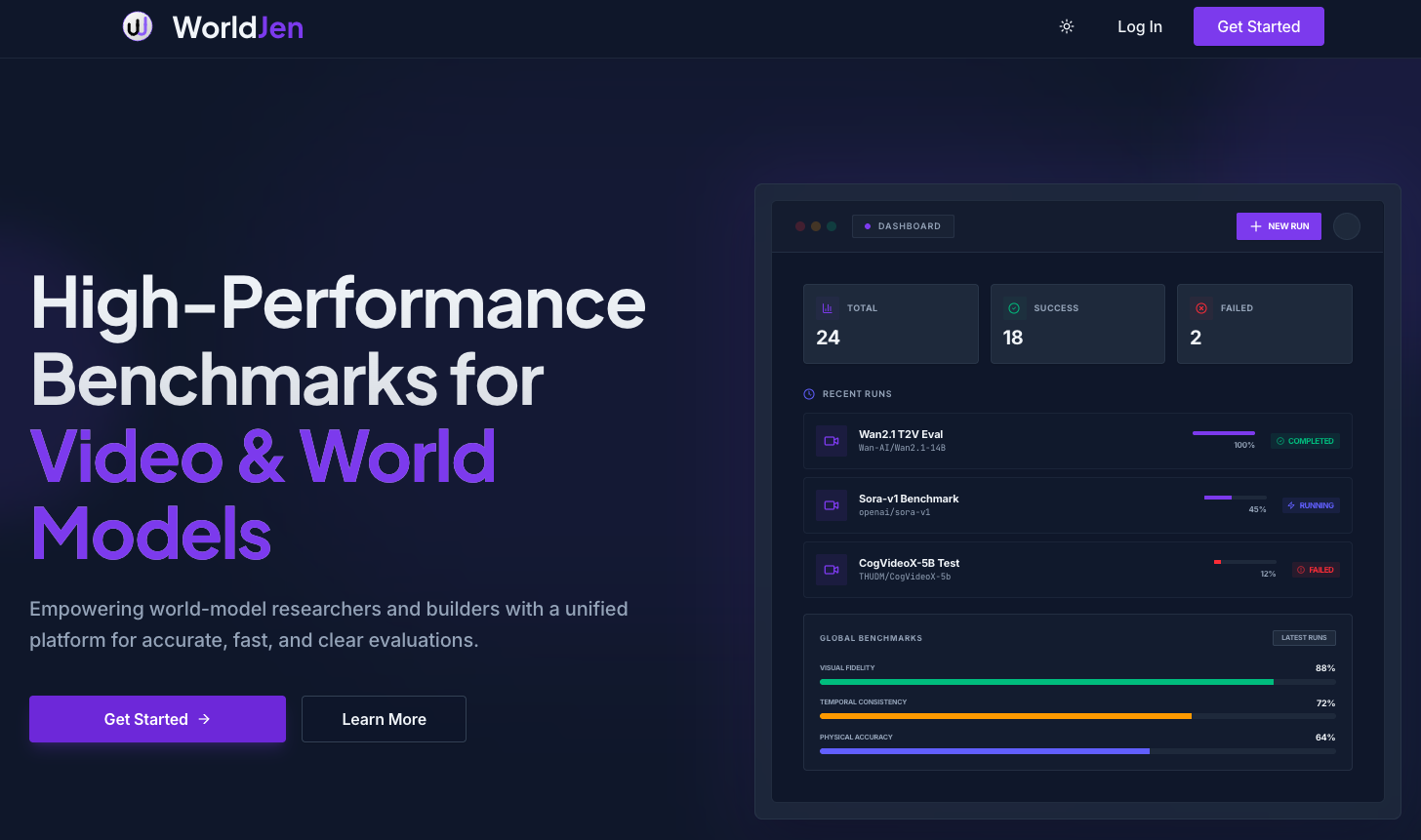
Head to worldjen.com and sign up. You can use Google, GitHub or email — it takes less than a minute.
Create an API key
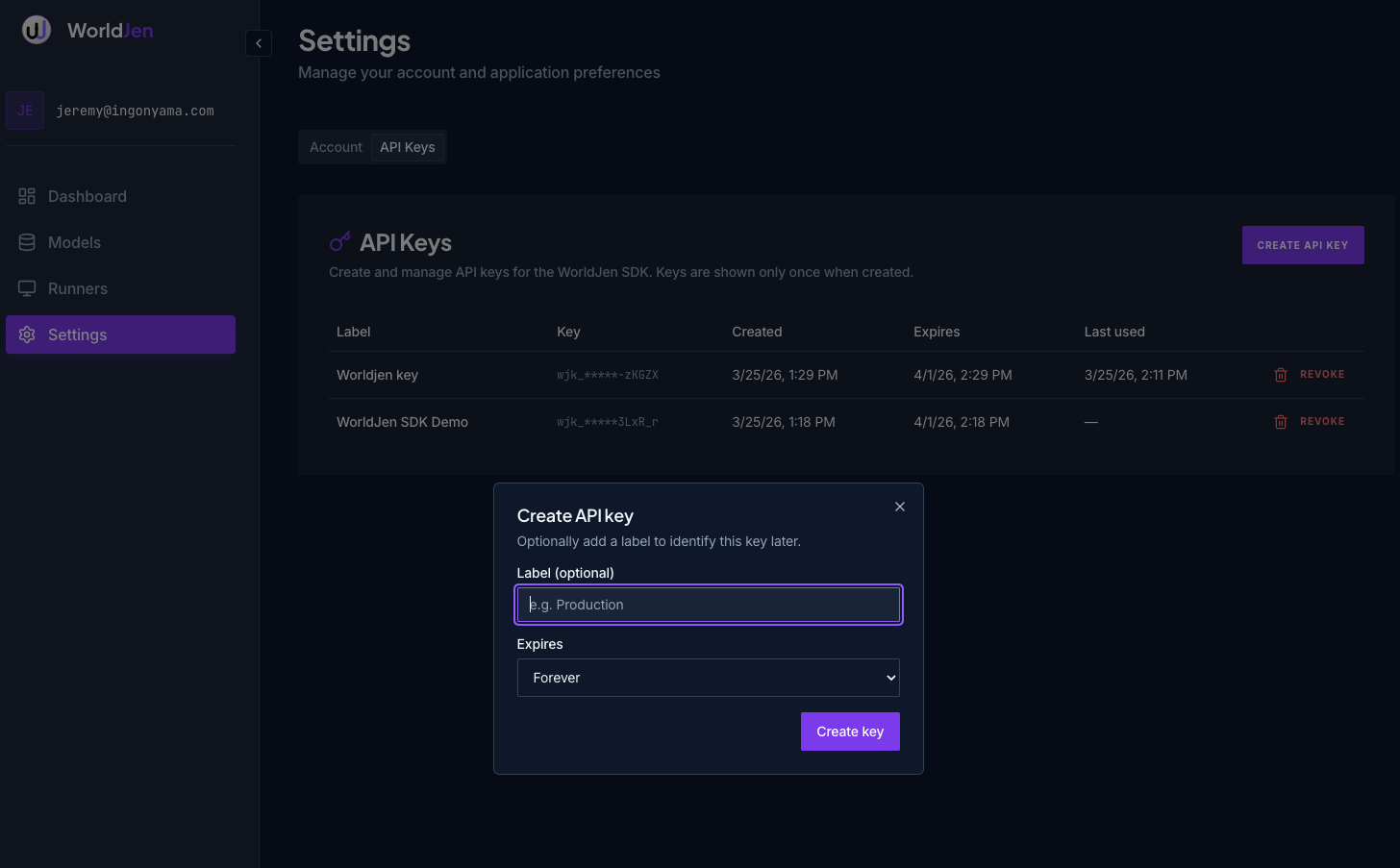
In the WorldJen dashboard, navigate to Settings → API Keys and click Create Key. Copy and save the key, you will only see it once. You can revoke the key at any time or set an expiration date.
Clone the examples repo
The example scripts live in a public repository. Clone it and navigate into the directory:
git clone https://github.com/moonmath-ai/worldjen-examples.git
cd worldjen-examples
Create a virtual environment
Create and activate a Python virtual environment using uv:
uv venv --python 3.12
source .venv/bin/activate
Export your API key
Set the key as an environment variable so the SDK can pick it up:
export WORLDJEN_API_KEY=your-api-key-hereInstall the SDK
Install the core worldjen package:
uv pip install worldjenInstall example requirements
The LTX-2 example needs diffusers>=0.37.0 (the first version with LTX-2 support) plus PyTorch and a few supporting libraries:
uv pip install -r requirements.txtThis installs:
diffusers==0.37.0— Hugging Face Diffusers with LTX2Pipelinetorch— PyTorch (CUDA, MPS, or CPU)transformers,accelerate,sentencepiece,protobuf— required by the model
NVIDIA GPU users — match your CUDA version
The requirements.txt installs the default torch build. If you are running on an NVIDIA GPU you should install the PyTorch version that matches your CUDA driver. Check your CUDA version with nvidia-smi, then install the correct build before running the requirements file. For example, for CUDA 12.6:
uv pip install torch --index-url https://download.pytorch.org/whl/cu126
uv pip install -r requirements.txt
See the PyTorch install matrix for all available CUDA versions.
Run the example script
The example generates videos for one evaluation dimension (DYNAMIC_DEGREE) using prompts bundled with the SDK. Each prompt produces one video that is automatically uploaded to your WorldJen account.
uv run run_ltx2.pyThe script auto-detects your hardware and adjusts frame count and inference steps:
| Device | Frames | Steps | dtype |
|---|---|---|---|
| CUDA | 121 | 40 | bfloat16 |
| MPS (Apple Silicon) | 65 | 20 | bfloat16 |
| CPU | 9 | 4 | float32 |
When the script finishes you will see output like:
run_id: 6651a3f2...
status: completed
videos: 97
Watch results in the dashboard
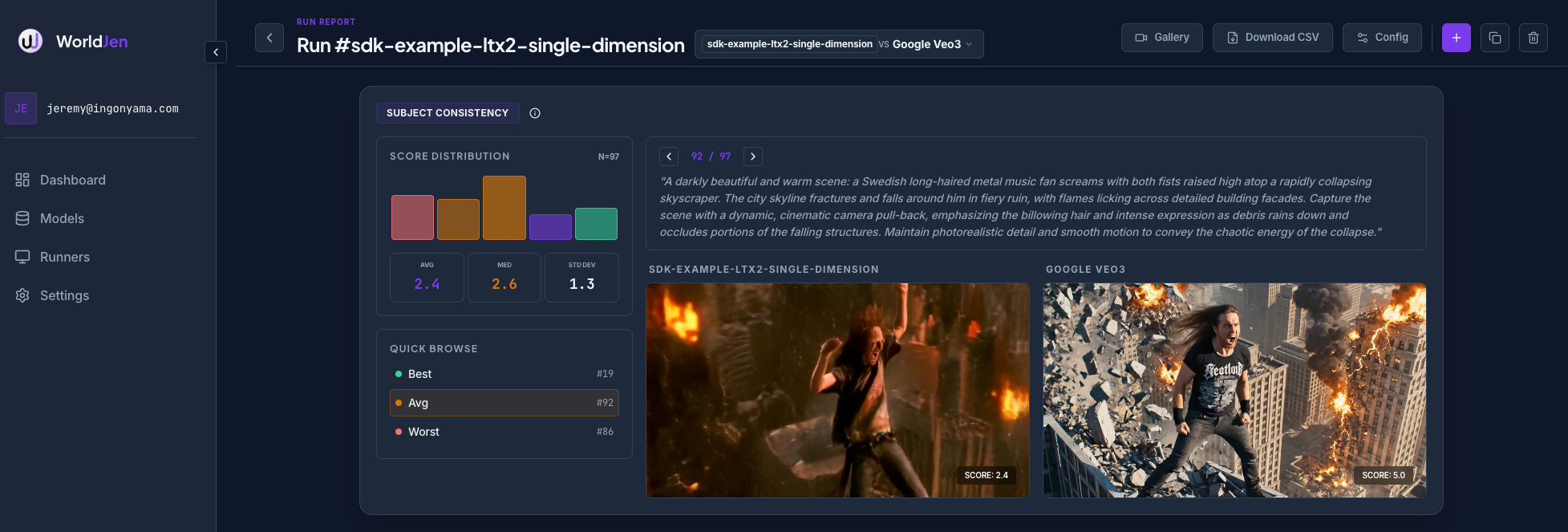
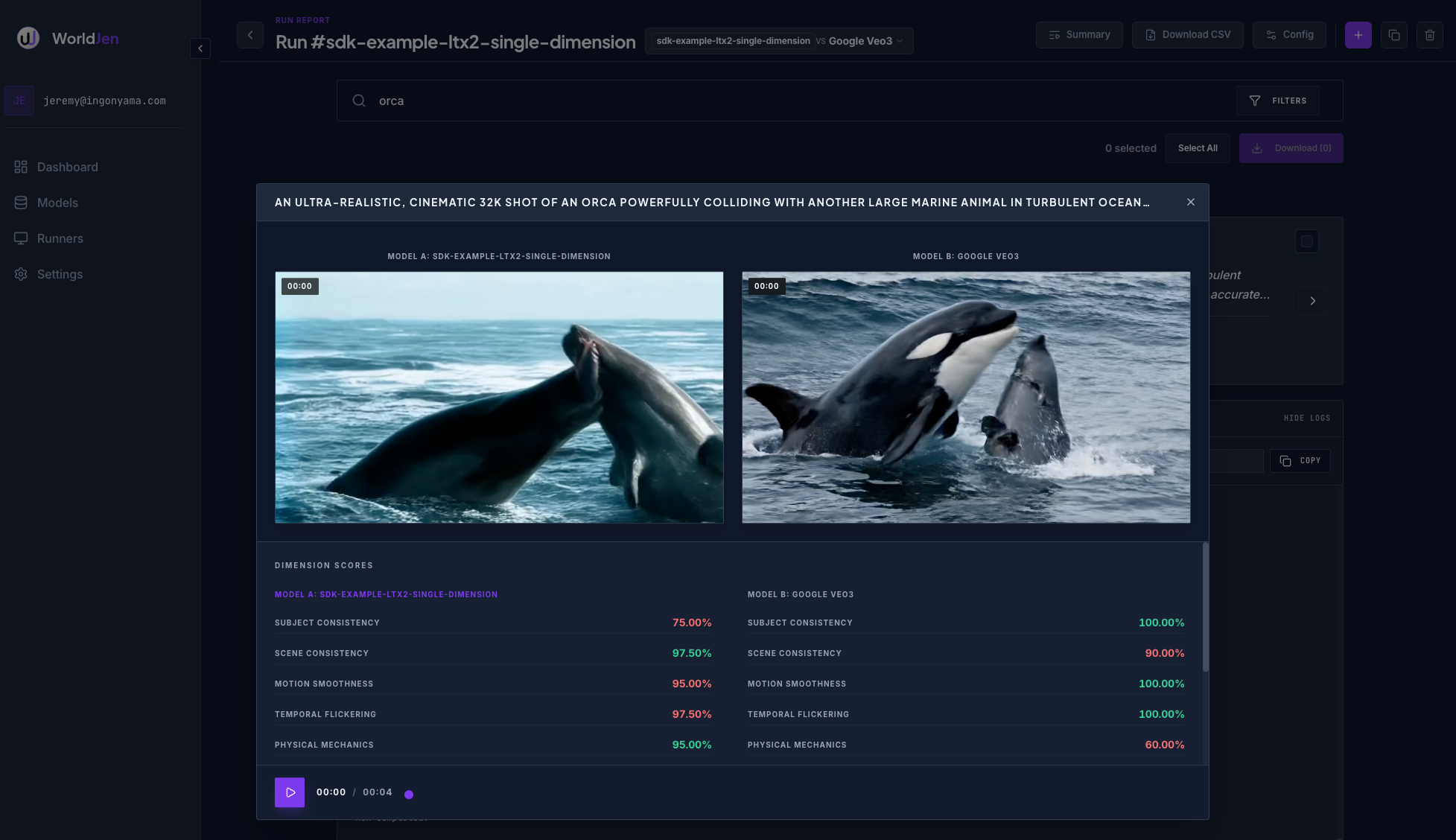
Go back to worldjen.com and open your run. Videos populate as they upload and evaluations score each one on the fly. You will see per-video scores and aggregate dimension scores update in real time.
Each video is scored on the dimensions you selected (in this case DYNAMIC_DEGREE). You can compare runs side-by-side, filter by score, and drill into individual videos to see frame-level details.
Next steps
- Run all dimensions at once:
dimensions=[Dimensions.ALL] - Wait for evaluation results inline:
wait_for_evals=True - Swap in your own model — any callable that accepts a
promptkwarg and returns frames works withworldjen.bench.run_with_pipeline() - For quick single-clip checks, try
worldjen.score.upload(...)instead of a full Bench run - See Python SDK for the full reference